Documentation Navigation
Windows desktop app
Last updated: September 30, 2026
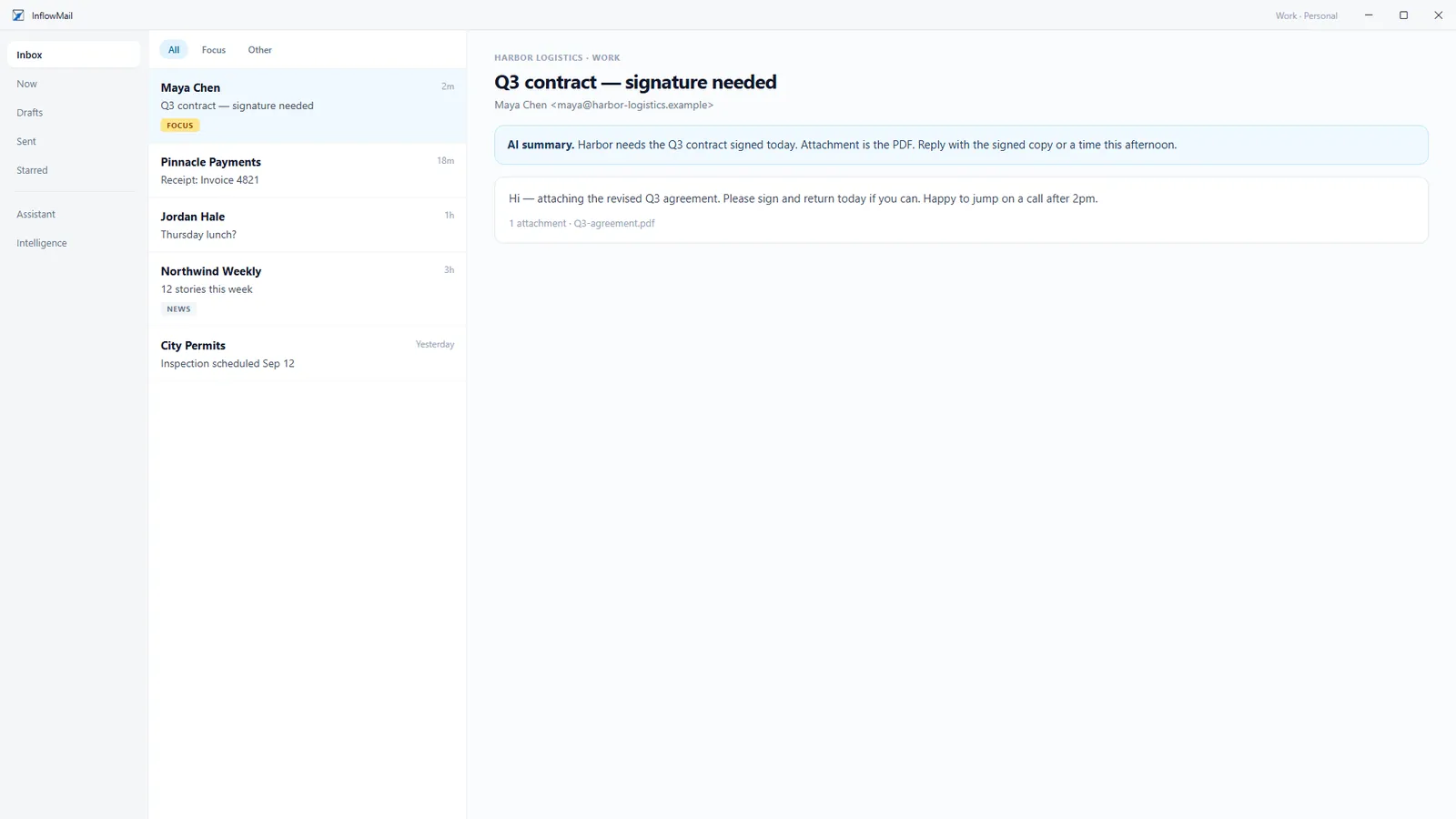
Your InflowMail inbox in its own Windows window. Same account, same mailboxes as the web app.
What It Is
InflowMail for Windows is a desktop app for the InflowMail account you already use on the web. Your Gmail, Microsoft 365, and IMAP mailboxes are connected to InflowMail, not to a device, so there is nothing to reconnect: sign in and every mailbox is already there.
Read state, stars, folders, rules, and AI classification are the same in both places. Archive a message in the desktop app and it is archived on the web too.
Install From the Microsoft Store
The Windows app is distributed through the Microsoft Store, published by InflowMail. The Store installs it like any other app and keeps it up to date.
Coming soon to the Microsoft Store
Store product ID: 9N58W4FVLZZ6.
No InflowMail account yet? You can create a free one from the app's first screen.
Signing In
The app never asks for your password. Sign-in happens in your web browser and is handed back to the app:
- Open InflowMail and choose Sign in with browser (or Create free account).
- Your default browser opens an InflowMail sign-in page. Sign in with email and password, or with Microsoft or Google, and complete two-factor authentication if your account uses it. If the browser is already signed in, just click Authorize.
- The browser says Login Successful. Close the tab; the app notices within a few seconds and opens your inbox.
Good to know: a sign-in link is valid for 10 minutes. If you close the browser tab or sign in as the wrong person, choose Cancel and start over in the app. Once signed in, the app keeps you signed in between launches, storing its session with Windows data protection.
What's Inside
One inbox for every mailbox: Focus and All mail across every connected account, or one account at a time from the sidebar. Drafts, Sent, Starred, Deleted, and Archive.
Read and write: reply, reply all, forward, and compose; move, archive, delete
(with undo), snooze, star, and mark read or unread. Keyboard shortcuts such as
Ctrl+N,
Ctrl+R and
Del.
Search: the same search as the web, including
from:,
subject: and
has:attachment.
See Search.
AI: the Assistant, the daily Briefing, Real / Now, Follow-ups, AI reply drafts, and "Why is this here?" on each message, with one-click Focus or Other to correct it.
New-mail alerts: new messages pop up inside the app window as they arrive, with a one-click copy for sign-in codes. Turn them off with Notify in the status bar.
Shared mailboxes: if someone has given you access to their mailbox, switch to it from the Mailbox menu. See Delegation.
Fits your screen: System, Light, or Dark theme, and zoom from 90% to 120%.
Opens in your browser: Calendar, Intelligence, Connected Accounts, Email Rules, Team Access, and account settings (profile, security, billing). The app links straight to those pages on the web.
Requirements
| Windows | Windows 11, or Windows 10 version 1809 (build 17763) or later |
| Processor | 64-bit x64 (Intel or AMD) |
| Account | An InflowMail account (free or paid). Create one from the app or on the web. |
| Connection | Internet access. Mail lives on InflowMail, so the app needs a connection to sync and send. |
There is no Mac or Linux desktop app. Use the web app in any modern browser.
Updates, Signing Out, and Uninstalling
Updates
The Microsoft Store installs updates automatically. To check now, open the Store, go to Library, and choose Get updates. The installed version is shown on the sign-in screen and in the app's status bar.
Signing out
Open the account menu at the bottom of the sidebar and choose Sign Out. This removes the session from the PC and ends it on InflowMail. Changing your password on the web signs out every desktop and mobile app at once.
Uninstalling
Go to Settings > Apps > Installed apps, find InflowMail, and choose Uninstall. This removes the app only. Your InflowMail account, connected mailboxes, and mail are untouched. To close the account itself, see Delete your account.
Screenshots
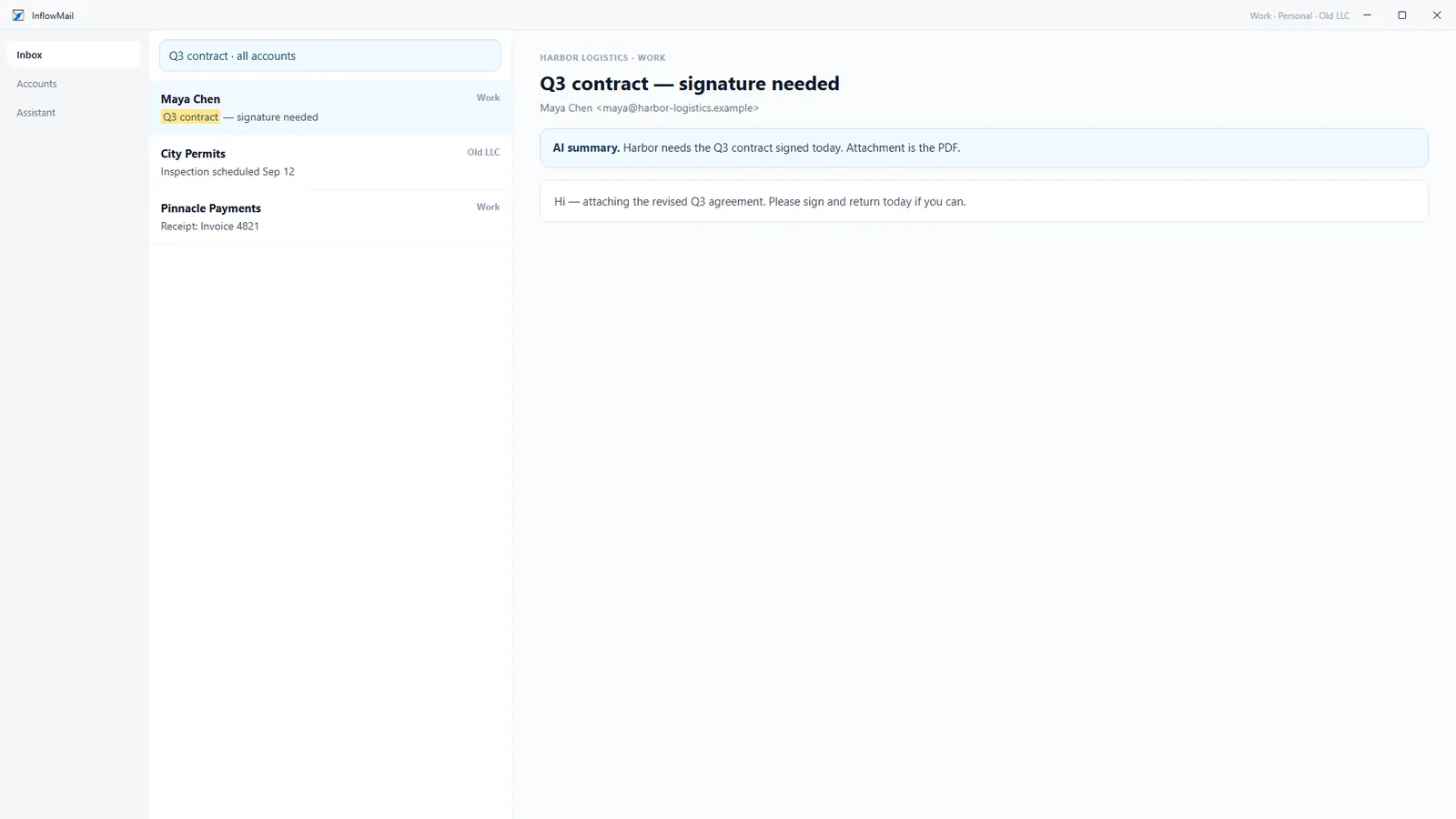
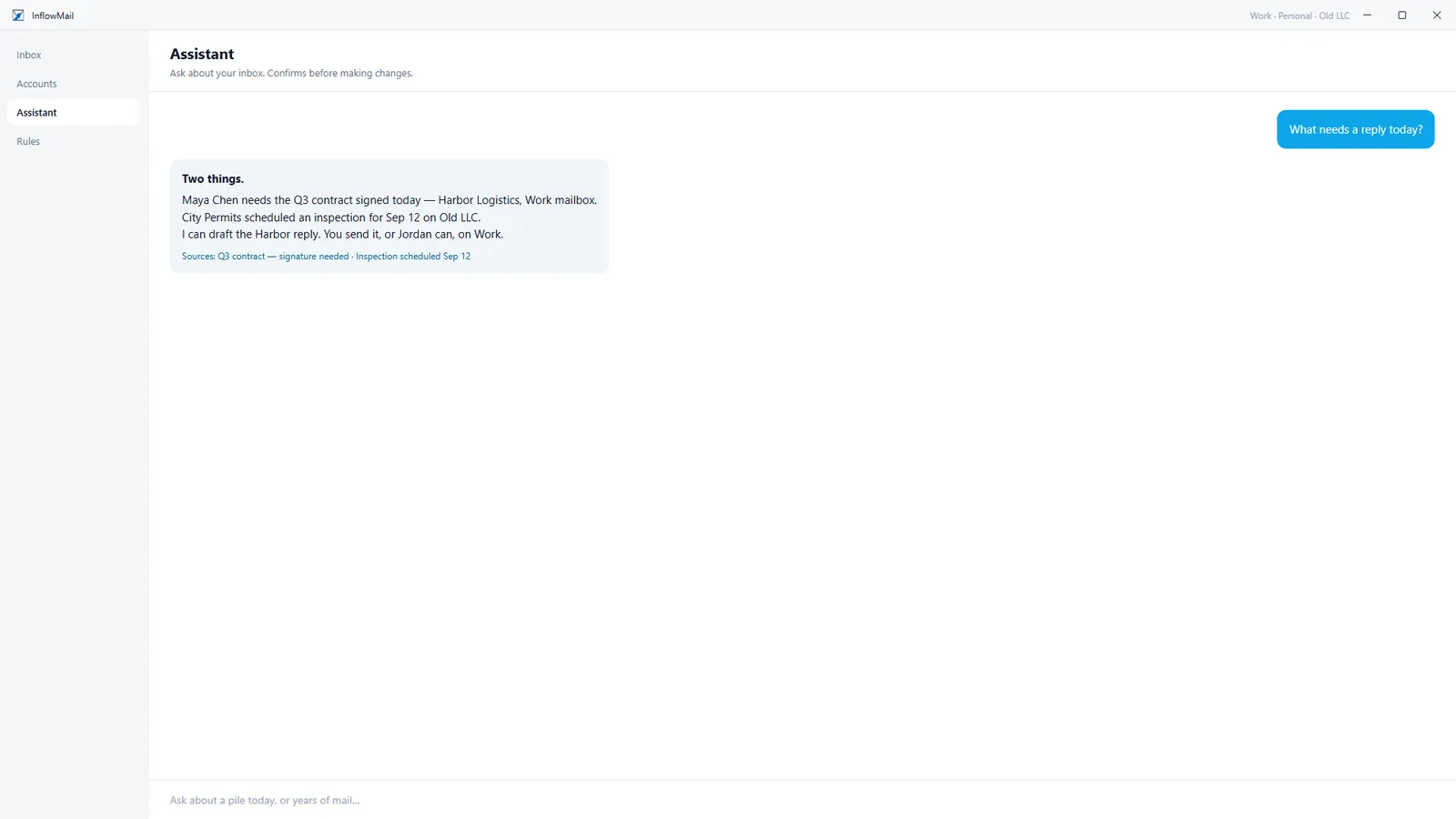
Screenshots use made-up sample mail.
Trouble installing or signing in?